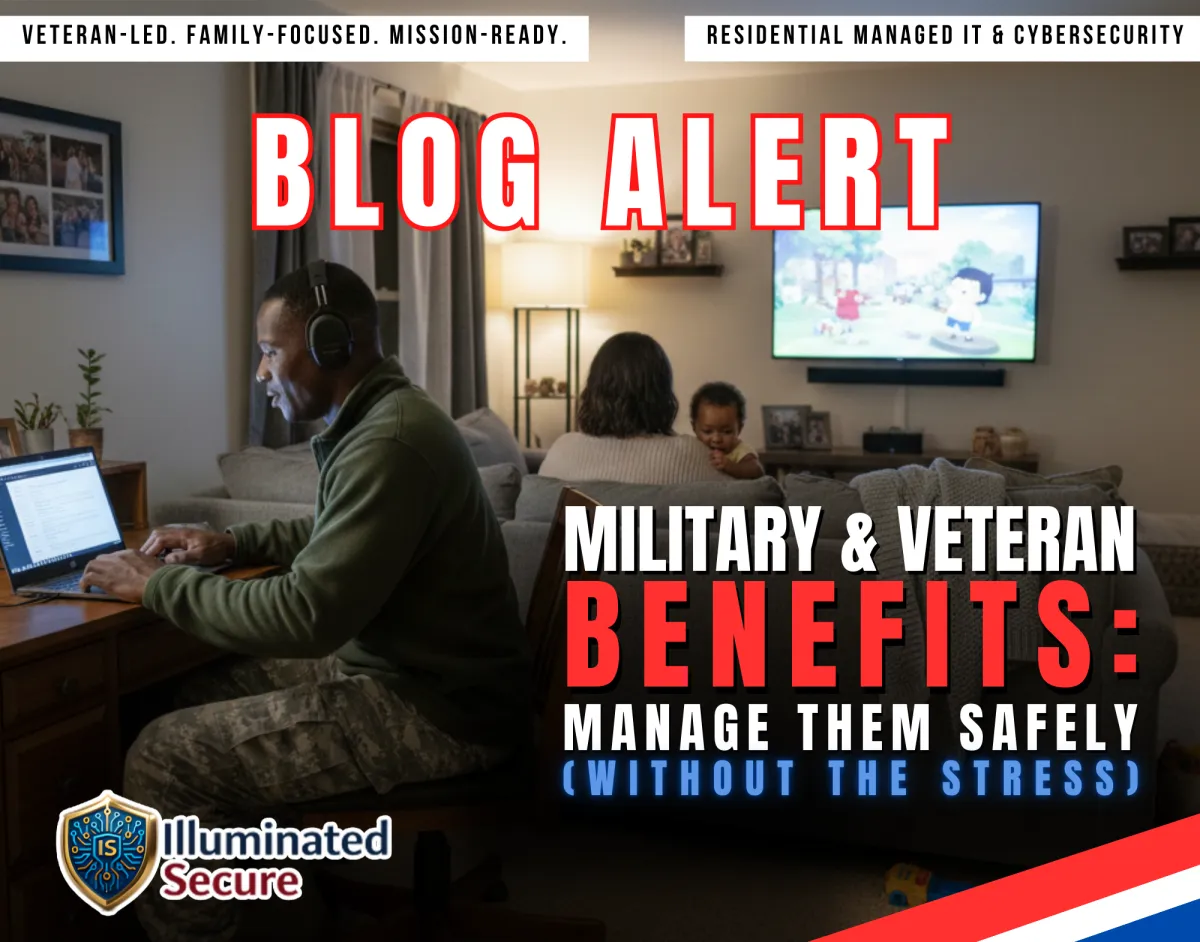
Protect Military Benefits Online: A Family Cyber Guide
Military & Veteran Benefits: Manage Them Safely (Without the Stress)
Military benefits can be a lifeline for families health care, education, housing, and long-term stability. But with so many programs (VA, Tricare, GI Bill, VA loans, insurance, retirement), it’s easy to lose track of logins, deadlines, and documents especially during a move or deployment. We help you stay organized and keep your personal information protected while you manage what matters.
Why this matters to the military home front
Benefits accounts and documents contain high-value identity information—exactly what scammers want. When life gets busy (PCS season, deployment routines, school enrollment, new jobs), most people default to “quick fixes” like password reuse, clicking links from emails, or storing sensitive PDFs in an inbox.
This post is about building calm, repeatable habits that secure the home front without turning your life into a tech project.
Step 1: Make a “Benefits Map” (one page, one place)
When benefits are scattered across multiple sites and apps, mistakes happen.
How to do it:
Create a simple list with:
Program name (VA, Tricare, GI Bill, etc.)
Official login URL (typed/bookmarked)
Username/email used
Recovery method on file (phone/email)
Step 2: Secure your email first (it’s the master key)
If someone gets into your email, they can reset most other accounts.
How to do it:
Enable MFA on email and make sure recovery options are up to date.
Step 3: Turn on MFA for anything tied to benefits, money, or health
MFA is one of the best “mission-ready” defenses against account takeover.
How to do it:
Enable MFA wherever it’s offered, especially for:
benefits portals
financial accounts
healthcare-related accounts
Never share MFA codes and never approve prompts you didn’t start.
Step 4: Stop clicking links for “benefits updates”
Scammers love messages that look official: “Action required,” “Eligibility change,” “Document missing.”
How to do it:
Use the bookmark or type the official site address yourself. If a message creates urgency, verify off-link.
Step 5: Store documents like controlled items
Benefit letters, award docs, medical summaries, school paperwork, and loan documents are identity gold.
How to do it:
Keep sensitive documents in a secure folder (not in your inbox). Limit who can access it and clean up old downloads.
Step 6: Create a family rule for phone calls and “support”
A lot of fraud starts with someone “helpful” offering to fix an account problem.
How to do it:
Household SOP:
No one gives codes over the phone
No one installs remote access tools from an unexpected call
If support is needed, hang up and call back using a known official number
Step 7: Make your home Wi-Fi part of the benefits plan
If your network is weak, your accounts are easier to compromise.
How to do it:
Update your router firmware, change default admin credentials, and keep guest Wi-Fi separate from your main devices.
Common Mistakes
Reusing the same password for multiple portals
Leaving sensitive PDFs in email attachments
Clicking “benefits update” links in texts/emails
Approving MFA prompts you didn’t initiate
Using public Wi-Fi for benefit or financial logins
Mission-Ready Checklist
Benefits Map created and saved securely
MFA enabled on email and key accounts
Unique passwords for benefits + finance logins
Sensitive documents stored outside of email inbox
Household SOP: urgent = verified off-link
Router updated + admin password changed
Device updates turned on (phones/laptops/tablets)
Ready to secure the home front?
If you want help hardening the accounts, devices, Wi-Fi, and document storage tied to the benefits you’ve earned, start here: Take the Cyber Readiness Self-Assessment.
Disclaimer: This is general information, not legal, tax, or financial advice.
You’ve earned these benefits. You deserve to manage them with confidence—securely, calmly, base to base.
